Getting started guide
What is Adagio
Adagio is a web and mobile app to help music teachers manage their classroom or studio. With Adagio, you can track student practice time, schedule lessons, assign homework, share class or lesson notes, and automate billing and invoices. For students, Adagio gives a way to stay engaged between classes with comments, a social feed, and levels and points for each practice session.
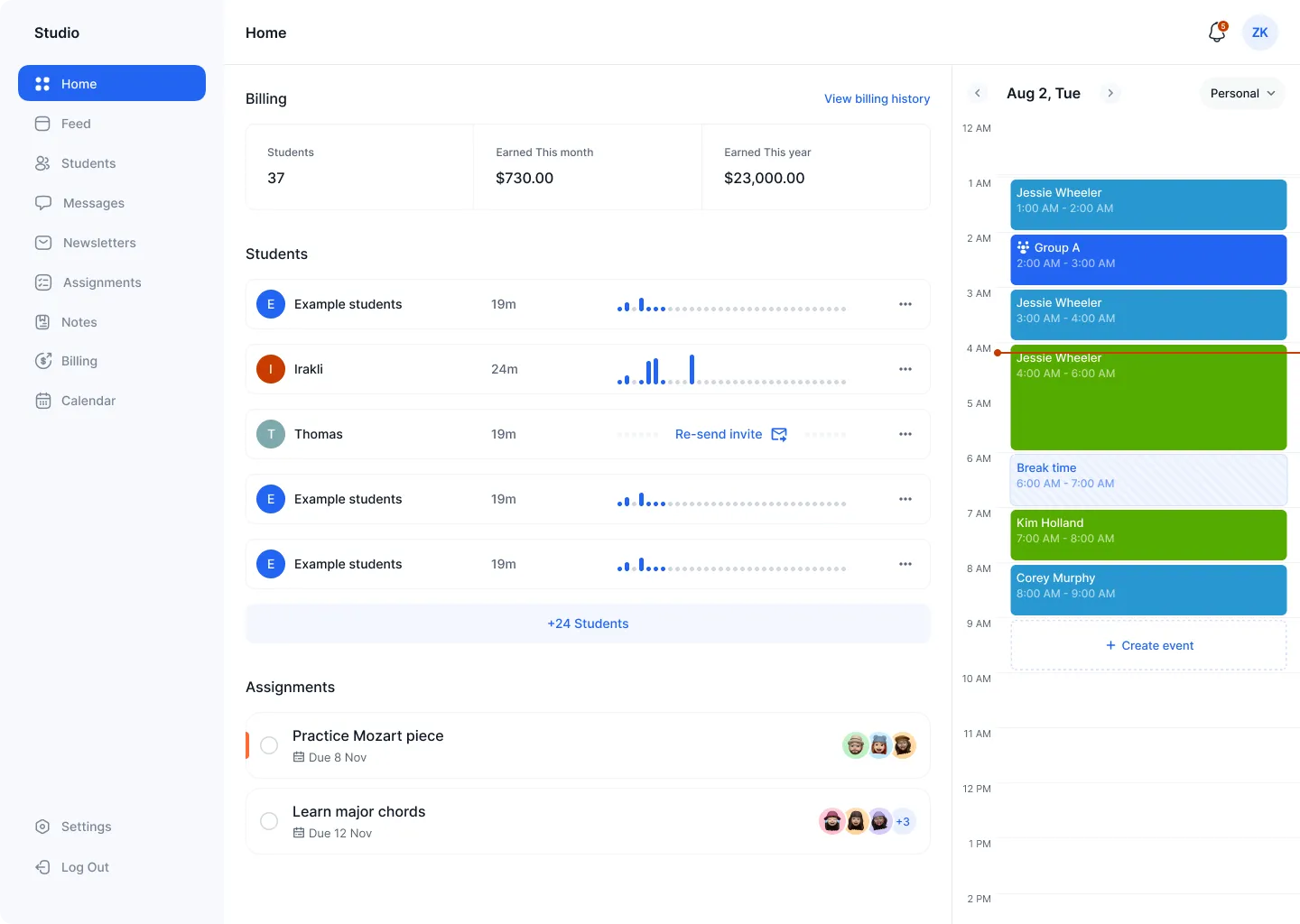
First, start adding students
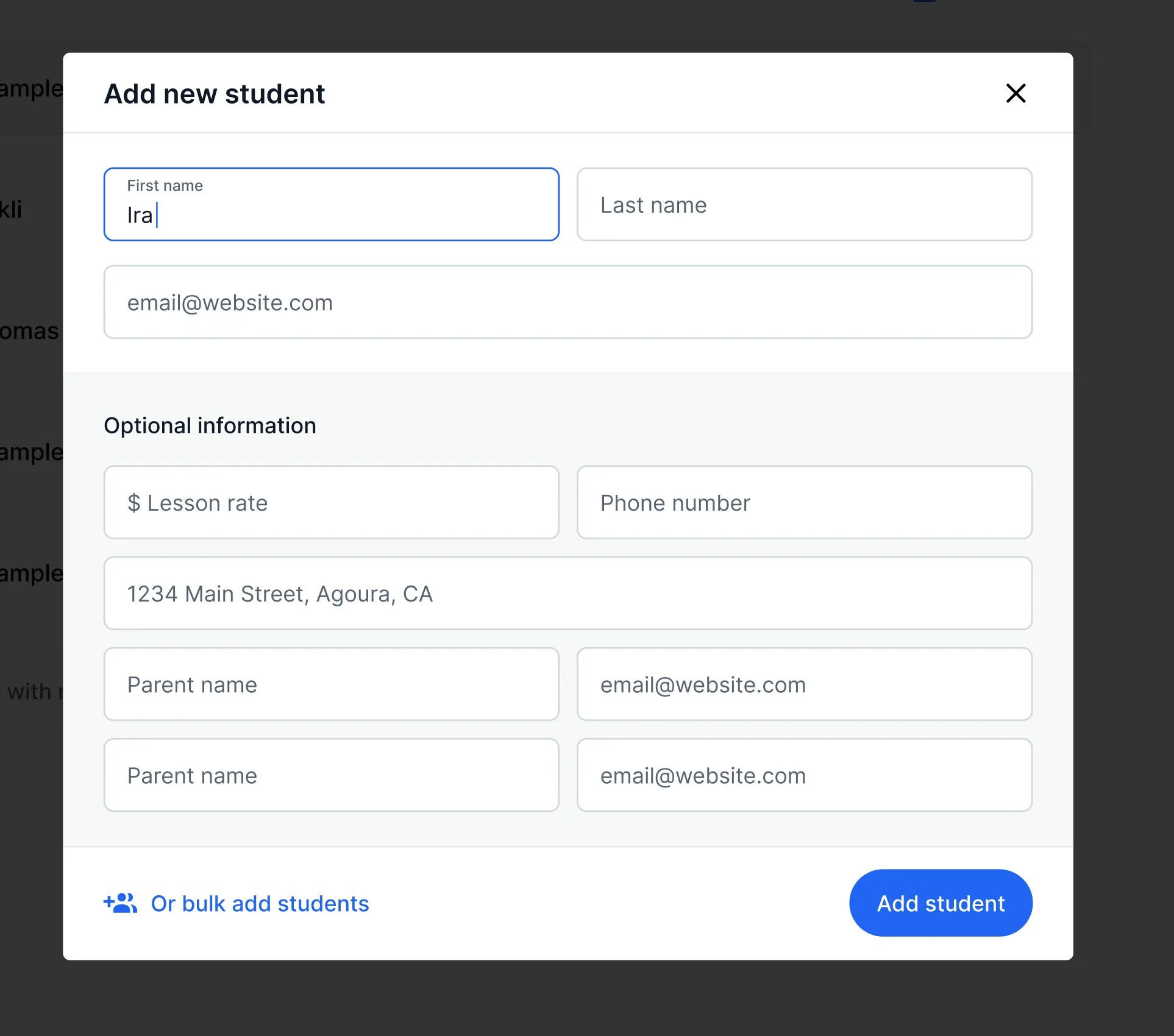
To get started, invite or manually add your students. Think of Adagio like an address book — you list names, emails, and other information about each student. This is an important step as all functionality is based off the email address entered for each student.
There are 3 ways to add students:
- One by one using the "add student" dialog
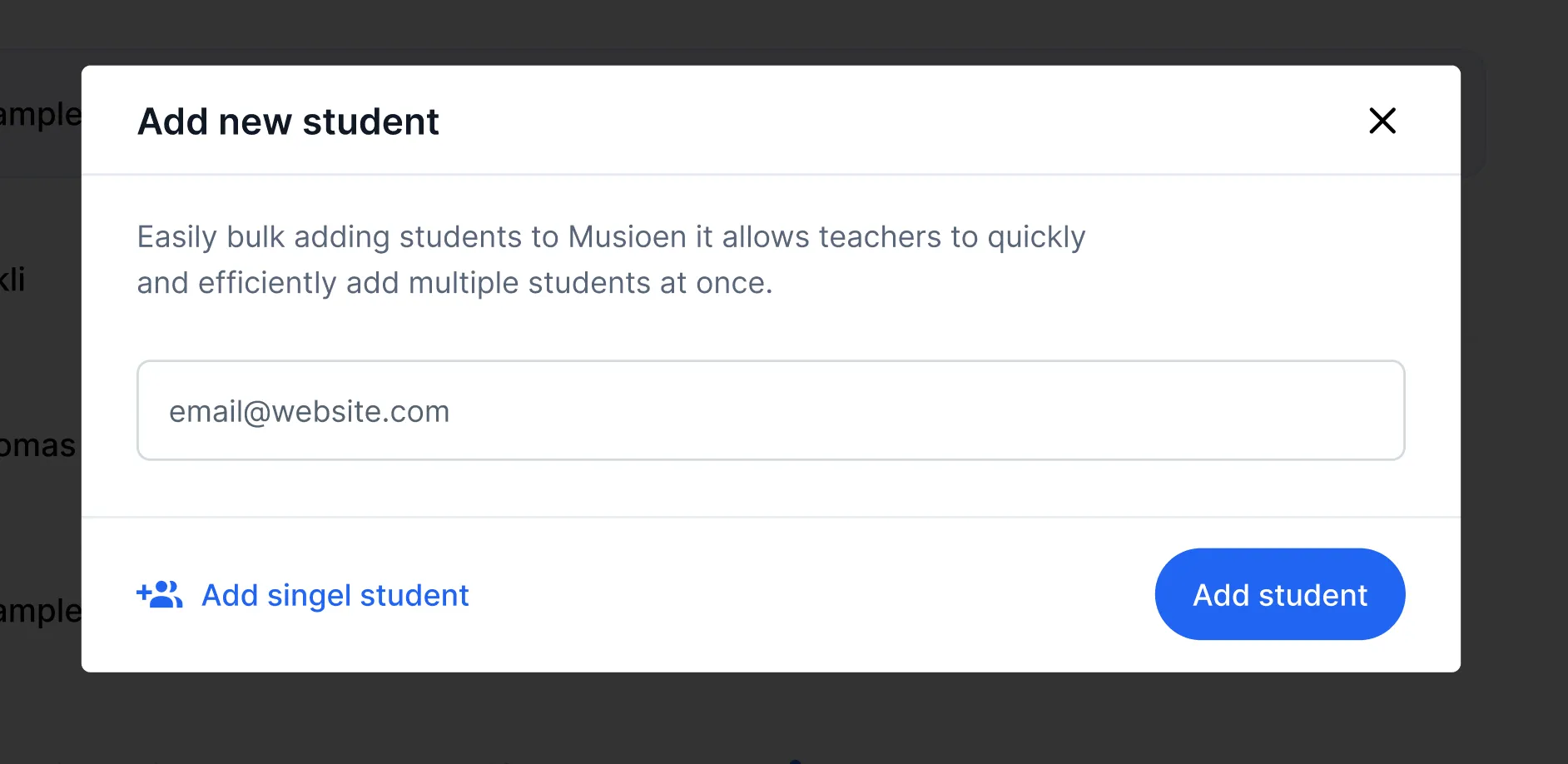
- Bulk-add by listing all of their emails at one time
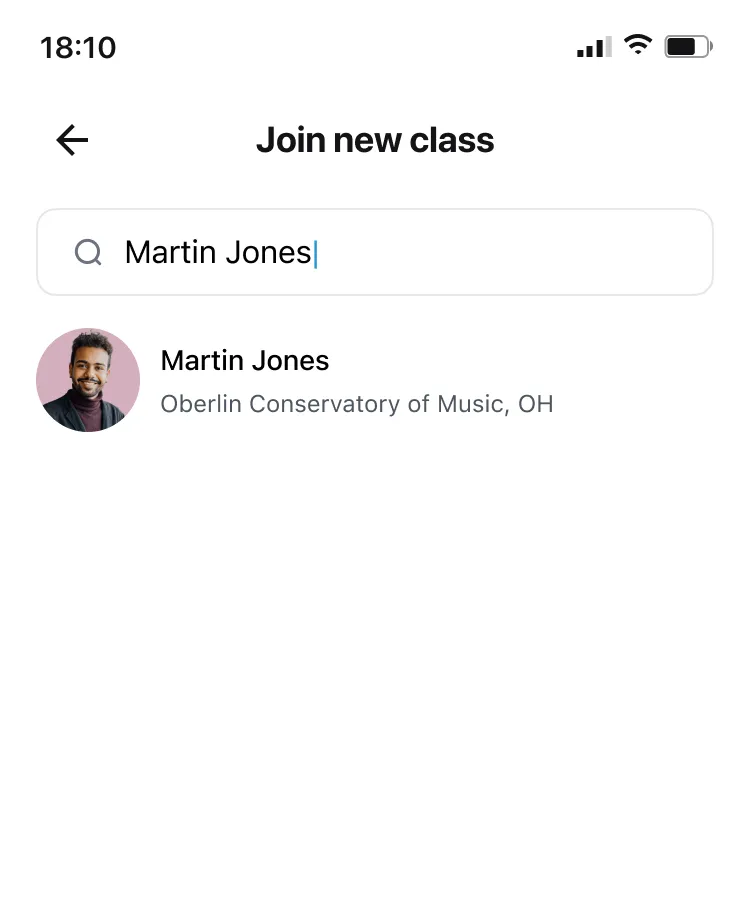
- Ask students to search for you via the Practice app
Option 1. One at a time
Option 2. Bulk add
Option 3. Search via Practice app
Profile page → Settings icon → Join Class → Search for the teacher's name
Why add student contact information like email?
Student email addresses allow for sending messages, tracking practice time, and calendar invites/reminders. Parent contact information allows parents to see the lesson schedule, billing invoices/reminders, and student progress.
When a student's email is added, they automatically receive a message asking them to download the practice app — this is how they track and send you practice session data.
Note: For option 3, make sure you have "allow students to find you" enabled in your Adagio account settings. It is enabled by default.

The hardest part is over, now explore!
Once students have been added, you can begin exploring Adagio's features including scheduling with the calendar, automated invoices, notes, homework assignments, and much more. Make sure students are using the app and that you see practice data in your account — then visit the feed page to comment, like, and encourage your students.